
Connect Rideful Slides to Claude.ai
Create presentations from Claude's chat interface
Before You Start
Note: Custom connectors require a Claude Pro or Team plan. Free accounts do not support them.
4 Steps to Get Started
Open Connectors
Click the "+" button next to the message input
Select Add connectors at the bottom of the menu
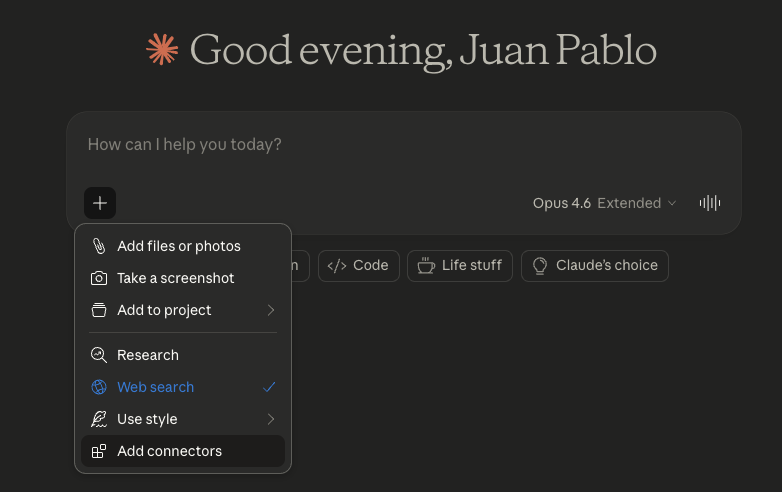
Add a Custom Connector
In the Connectors dialog, click "add a custom one" in the subtitle text
If you don't see this option, ensure you're on a Pro or Team plan.
Alternative: You can also go to Settings → Connectors and click "Add custom connector".

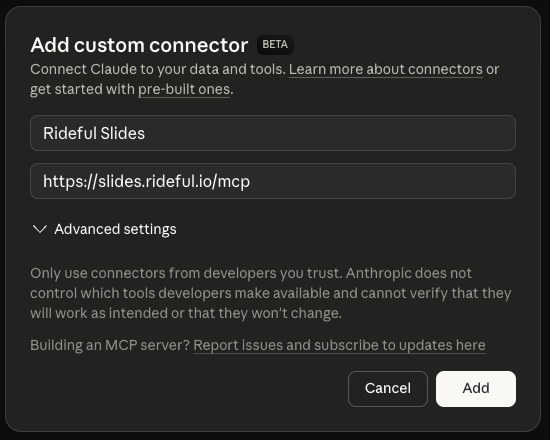
Fill in the Details & Add
Fill in the "Add custom connector" form:
Name:
Rideful SlidesRemote MCP server URL:
https://slides.rideful.io/mcpClick Add
Authenticate
You'll be redirected to sign in with your Rideful account. Complete the login to authorize the connection.
A new window will open for authentication. After signing in, return to Claude.ai.
Tip: If authentication doesn't start, go to Settings → Connectors, find Rideful Slides, and reconnect.
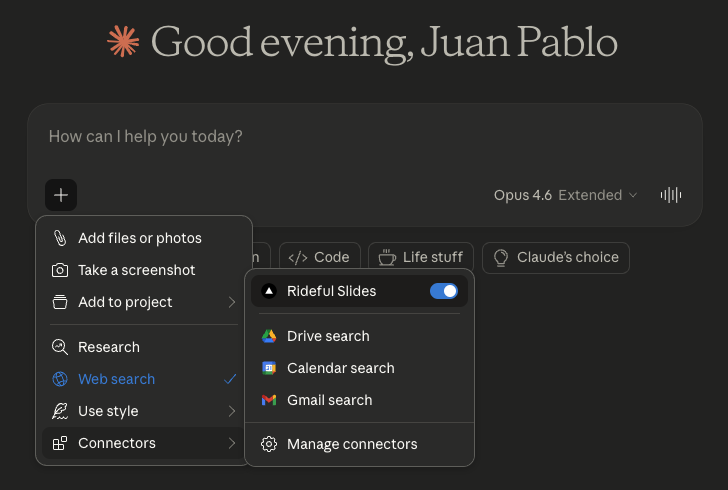
You're all set! You should see Rideful Slides in your Connectors menu:
Try these prompts:
Available Tools
Read
deck_listList all slide decks the user has access to
template_listList all slide deck templates available
deck_getGet full details of a deck including theme, slides summary, and guidelines
slide_getGet full details of multiple slides including all elements
Create
deck_createCreate a new slide deck with one empty slide
slide_createCreate a new slide to a deck with built-in or template layouts
slide_bulk_createCreate multiple slides with content in a single call
element_createCreate a shape, text, or line element on a slide
element_bulk_createCreate up to 50 elements on a slide in one call
element_create_imageAdd an image to a slide by fetching from a URL
element_duplicateCopy elements exactly, on the same slide or onto another
Update
element_bulk_updateUpdate multiple elements’ properties in a single call
slide_duplicateDuplicate a slide and all its elements
Delete
element_deleteDelete an element from a slide
slide_deleteDelete a slide and all its elements from a deck