
Connect Rideful Slides to Le Chat
Create presentations from Mistral's chat interface
Before You Start
Note: Custom MCP connectors in Le Chat are currently in beta.
5 Steps to Get Started
Open Connectors
Open the sidebar and click Intelligence
Select Connectors

Add Connector
On the My Connectors page, click "+ Add Connector" in the top-right

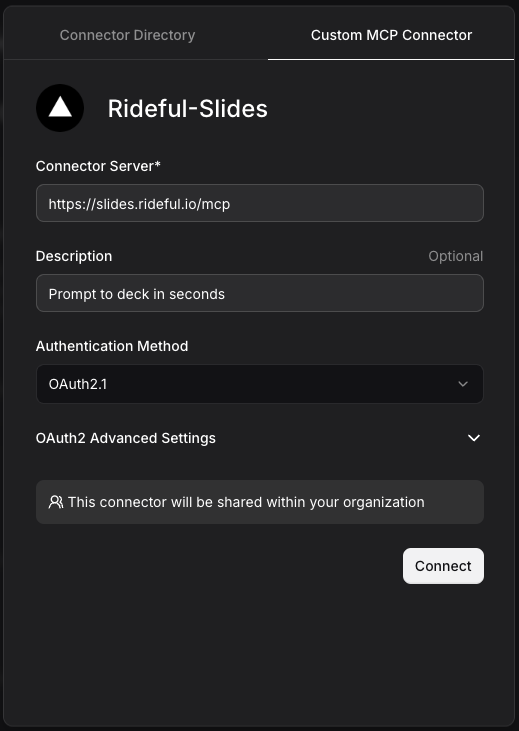
Fill in the Custom MCP Connector Form
Switch to the Custom MCP Connector tab and fill in the form:
Connector Name:
Rideful-SlidesConnector Server:
https://slides.rideful.io/mcpDescription:
Prompt to deck in secondsClick Connect
Note: Le Chat doesn't allow spaces in the connector name — use a hyphen instead (Rideful-Slides).
Authenticate
You'll be redirected to sign in with your Rideful account. Complete the login to authorize the connection.
After signing in, you'll be taken back to the My Connectors page where Rideful-Slides should show as Connected.

Activate in a Chat
In a chat, click Tools below the message input
Under Connectors, toggle on Rideful-Slides
Once activated, you can ask Le Chat to create and manage presentations.
Try these prompts:

You're all set! Toggle it on and start creating.
Available Tools
Read
deck_listList all slide decks the user has access to
template_listList all slide deck templates available
deck_getGet full details of a deck including theme, slides summary, and guidelines
slide_getGet full details of multiple slides including all elements
Create
deck_createCreate a new slide deck with one empty slide
slide_createCreate a new slide to a deck with built-in or template layouts
slide_bulk_createCreate multiple slides with content in a single call
element_createCreate a shape, text, or line element on a slide
element_bulk_createCreate up to 50 elements on a slide in one call
element_create_imageAdd an image to a slide by fetching from a URL
element_duplicateCopy elements exactly, on the same slide or onto another
Update
element_bulk_updateUpdate multiple elements’ properties in a single call
slide_duplicateDuplicate a slide and all its elements
Delete
element_deleteDelete an element from a slide
slide_deleteDelete a slide and all its elements from a deck